- 1
Install the PostHog SDK
RequiredSetting up analytics starts with installing the PostHog SDK.
Terminalnpm install @posthog/ai posthog-node - 2
Install the Vercel AI SDK
RequiredInstall the Vercel AI SDK:
Terminalnpm install ai @ai-sdk/openaiProxy noteThese SDKs do not proxy your calls. They only fire off an async call to PostHog in the background to send the data.
You can also use LLM analytics with other SDKs or our API, but you will need to capture the data in the right format. See the schema in the manual capture section for more details.
- 3
Initialize PostHog and Vercel AI
RequiredInitialize PostHog with your project API key and host from your project settings, then pass the Vercel AI OpenAI client and the PostHog client to the
withTracingwrapper.TypeScriptimport { PostHog } from "posthog-node";import { withTracing } from "@posthog/ai"import { generateText } from "ai"import { createOpenAI } from "@ai-sdk/openai"const phClient = new PostHog('<ph_project_api_key>',{ host: 'https://us.i.posthog.com' });const openaiClient = createOpenAI({apiKey: 'your_openai_api_key',compatibility: 'strict'});const model = withTracing(openaiClient("gpt-4-turbo"), phClient, {posthogDistinctId: "user_123", // optionalposthogTraceId: "trace_123", // optionalposthogProperties: { conversationId: "abc123", paid: true }, // optionalposthogPrivacyMode: false, // optionalposthogGroups: { company: "companyIdInYourDb" }, // optional});phClient.shutdown()You can enrich LLM events with additional data by passing parameters such as the trace ID, distinct ID, custom properties, groups, and privacy mode options.
- 4
Call Vercel AI
RequiredNow, when you use the Vercel AI SDK to call LLMs, PostHog automatically captures an
$ai_generationevent.This works for both
textandimagemessage types.TypeScriptconst { text } = await generateText({model: model,prompt: message});console.log(text)Note: If you want to capture LLM events anonymously, don't pass a distinct ID to the request. See our docs on anonymous vs identified events to learn more.
You can expect captured
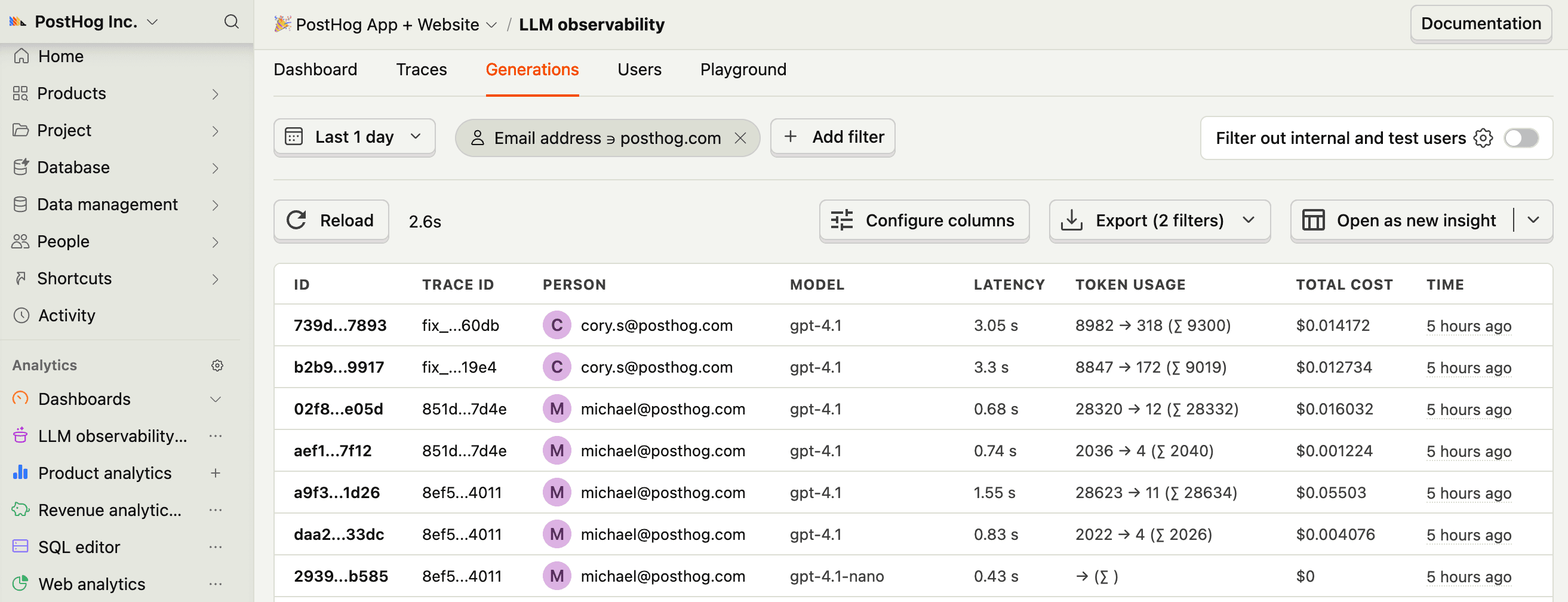
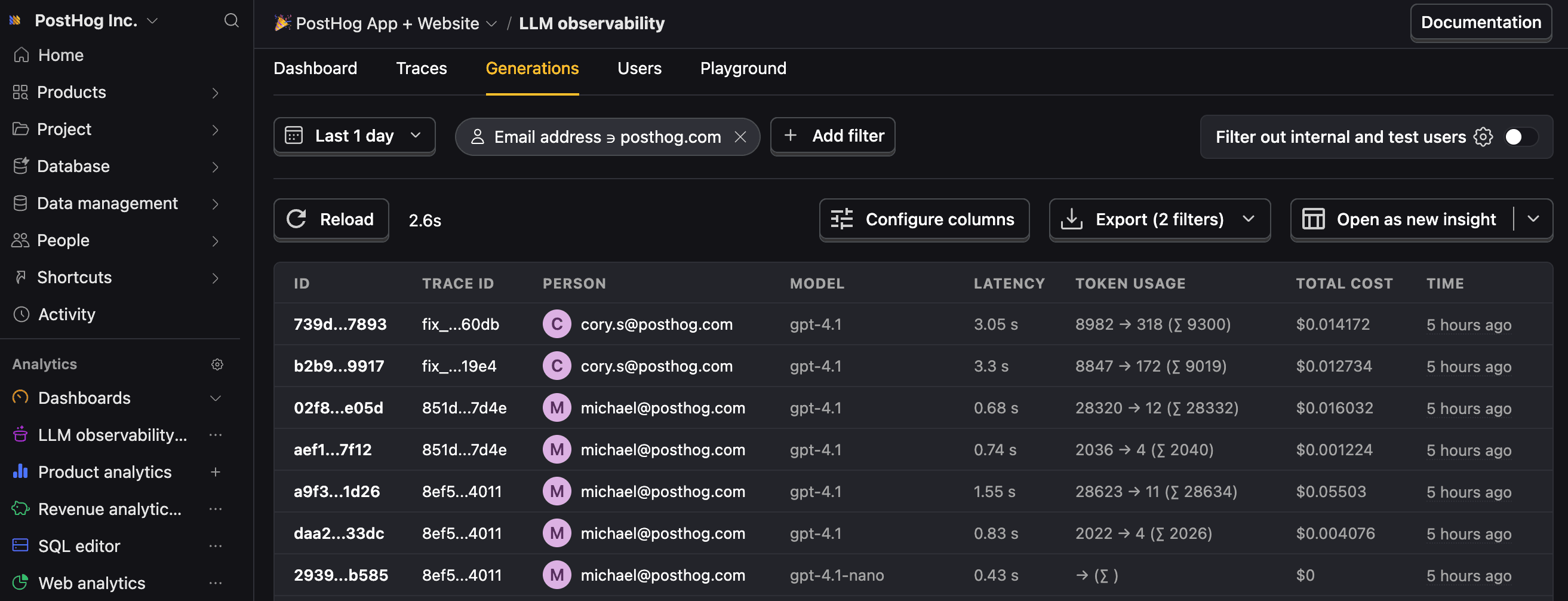
$ai_generationevents to have the following properties:Property Description $ai_modelThe specific model, like gpt-5-miniorclaude-4-sonnet$ai_latencyThe latency of the LLM call in seconds $ai_toolsTools and functions available to the LLM $ai_inputList of messages sent to the LLM $ai_input_tokensThe number of tokens in the input (often found in response.usage) $ai_output_choicesList of response choices from the LLM $ai_output_tokensThe number of tokens in the output (often found in response.usage)$ai_total_cost_usdThe total cost in USD (input + output) ... See full list of properties
Vercel AI LLM analytics installation
Last updated:
|
Questions? Ask Max AI.
It's easier than reading through 814 pages of documentation
Community questions
Was this page useful?
Next article
OpenRouter LLM analytics installation
Setting up analytics starts with installing the PostHog SDK for your language. LLM analytics works best with our Python and Node SDKs. Install the OpenAI SDK: We call OpenRouter through the OpenAI client and generate a response. We’ll use PostHog’s OpenAI provider to capture all the details of the call. Initialize PostHog with your PostHog project API key and host from your project settings , then pass the PostHog client along with the OpenRouter config (the base URL and API key) to our OpenAI…